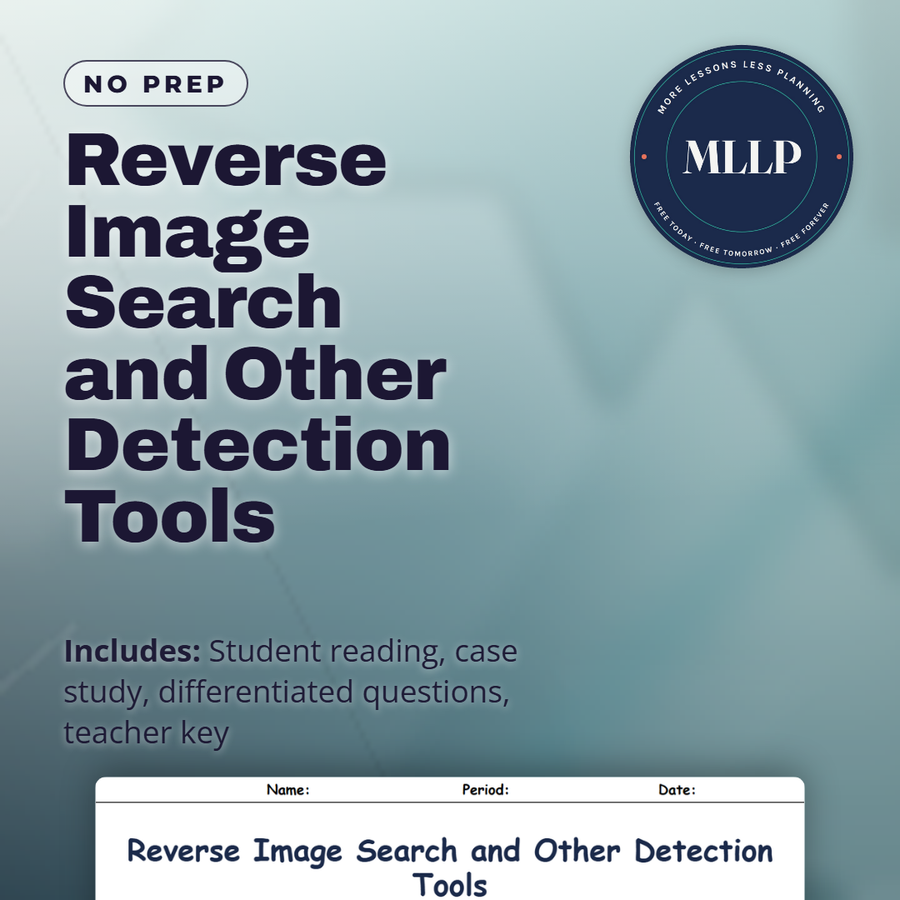
Reverse Image Search and Other Detection Tools
Quality reviewed September 2026
Facts verified September 20, 2026
- Subject
- Career & Life Skills
- Grades
- Grades 9-12
- Length
- 9-page student worksheet
- Time
- About one 50-minute class period
- Great for
- Sub plans and independent work
- Includes
- Reading passage, comprehension questions + full answer key
- Format
- Print-and-go PDF
What students do
- Priya's investigation traces three hurricane photos back through Google, TinEye, and FotoForensics
- Sort verification tools like TinEye, WeVerify, and FotoForensics by the specific job each one performs
- EXIF metadata's strengths and limits get explained through what social media strips before it reaches viewers
- Answer how the five-step personal verification workflow moves from a first reverse search to a final official check
What it covers
- How Google Images, TinEye, and the WeVerify plugin each serve a different verification purpose
- Why EXIF metadata is a useful but easily stripped or edited clue
- The five-step workflow professional fact-checkers use before trusting an image
Start reading this worksheet
The Power of Asking Where an Image Came From
When you encounter a suspicious image online, one of the most powerful things you can do is ask a simple question: where did this image come from? The intuitive approach, examining the image itself for tells, requires expertise and can be fooled by sophisticated fakes. The contextual approach, tracing the image's origin and travel through the internet, requires only a few seconds and a free tool, and it is often far more revealing. Reverse image search is the foundational tool for this contextual approach, and it remains one of the most underused media literacy skills despite its simplicity and power. A reverse image search allows you to submit an image to a search engine and retrieve results showing where that image (or visually similar images) appears online. If a viral image is claimed to show a recent event but a reverse image search reveals it was first posted five years ago in a different country for a different context, the claim is clearly false, regardless of how convincing the image looks on its own. The image's travel history, its first appearance, and the contexts in which it has been used are often more informative than anything you could learn by examining pixels.
How to Perform a Reverse Image Search
Three major reverse image search tools are freely available: Google Images (images.google.com), TinEye (tineye.com), and Bing Visual Search. Each uses different indexing and ranking algorithms, which means they sometimes return different results for the same image. Professional fact-checkers typically run searches on multiple tools for important queries: an image that returns no results on Google may appear on TinEye's database, and vice versa. To use Google Images reverse search on a desktop browser: right-click on any image on a web page and select 'Search image with Google' from the context menu. Alternatively, navigate to images.google.com, click the camera icon in the search bar, and either paste an image URL or upload an image file. On mobile devices, press and hold on most images in Chrome or Safari to access a reverse search option. For images embedded in screenshots, cropping to isolate the specific image before searching improves result accuracy significantly. TinEye specializes in exact image matching; it is particularly useful for finding the earliest known appearance of an image online, which helps establish whether an image predates the event it's claimed to document. TinEye's date-sorting function, which lets you arrange results from oldest to newest, is specifically valuable for identifying images misrepresented as current news.
InVID and WeVerify: The Professional Toolkit
Journalists and professional fact-checkers typically use more powerful tools than basic reverse image search. InVID (now integrated into the WeVerify plugin for Chrome and Firefox) is a browser extension specifically designed for video and image verification. Its capabilities go significantly beyond what standard reverse image search offers: it can extract key frames from videos for separate image searches, perform reverse image search across multiple platforms simultaneously, analyze image metadata, and check for embedded geographic data (GPS coordinates) in photos that were taken with location services enabled. The WeVerify plugin also provides access to tools for analyzing manipulation in images: it can flag if an image has been JPEG-compressed multiple times (which suggests it has been edited and re-saved, a common step in manipulated images), show the image's EXIF metadata (the hidden data file embedded in most digital photographs, which records camera model, shooting date, GPS coordinates, and other details), and perform contextual searches that check an image against known fact-checking databases.
Like what you read? The full reading, the case study, and every question set are in the free download below, along with the answer key.
Why this matters
A viral photo claiming to show a disaster is one of the fastest-moving forms of misinformation a student will encounter, and this reading hands them the exact sequence Priya used to unravel one in under ten minutes: a reverse image search, a TinEye date sort, and a check of official emergency accounts. Knowing that these tools are free, fast, and require no technical background turns verification from an abstract virtue into something a student can actually do the next time a dramatic image shows up in their feed.
From one teacher to another
Priya's assignment to fact-check a viral hurricane flooding post drives this whole reading, and students follow her exact steps as she runs three images through Google reverse search, TinEye, and FotoForensics. One photo turns out to be six years old and from a different country, another traces to an unrelated disaster blog, and a third shows manipulation artifacts under Error Level Analysis. Along the way the reading explains how EXIF metadata works, why social media platforms strip it automatically, and why that makes it a useful clue but never a final answer. A closing five-step workflow ties the individual tools into one repeatable process.
What you get
Download
Where should I send the next one?
Everything here is free and it stays that way. Leave your email and I'll send you the new lessons as they go up. You can unsubscribe from any one of them.
Related resources

AI in News and Misinformation Campaigns
AI-Written Text: How to Tell If a Human Wrote It

Building a Personal Verify Before You Share Habit

Deepfake Audio: The Voice-Cloning Threat

Lateral Reading: Verifying What You See Online
Spotting AI-Generated Images: 7 Telltale Signs
Every lesson on this site is free to download and use. If one of them saved you a prep period, you can chip in a few bucks toward my three kids' daycare fund. That's genuinely where tips go.