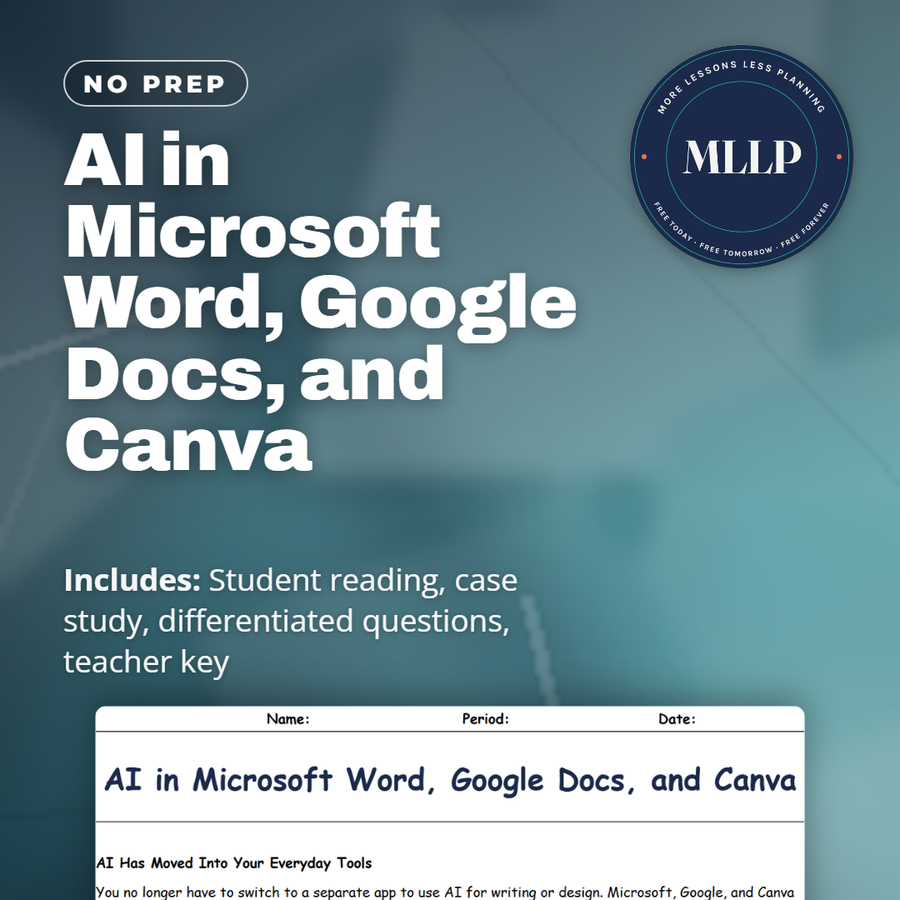
AI in Microsoft Word, Google Docs, and Canva
Quality reviewed September 2026
Facts verified September 20, 2026
- Subject
- Career & Life Skills
- Grades
- Grades 9-12
- Length
- 9-page student worksheet
- Time
- About one 50-minute class period
- Great for
- Sub plans and independent work
- Includes
- Reading passage, comprehension questions + full answer key
- Format
- Print-and-go PDF
What students do
- Copilot and Magic Edit fill out a five-term matching set on AI tools built into everyday apps
- Aaliyah's 45-minute Canva presentation anchors two case study questions on dividing work with AI
- Microsoft, the blank page problem, and Magic Design complete three blanks pulled from the passage
- Answer three multiple choice questions on Copilot, Magic Design, and AI privacy habits
What it covers
- Six passages on AI features built into Word, Docs, and Canva, from Copilot to Magic Edit
- A case study on Aaliyah building a Civil Rights Movement presentation with Canva's Magic Design in 45 minutes
- A key info table naming eight AI features across Microsoft, Google, and Canva
Start reading this worksheet
AI Has Moved Into Your Everyday Tools
You no longer have to switch to a separate app to use AI for writing or design. Microsoft, Google, and Canva have all integrated AI directly into the tools that students and workers use every day. Microsoft has Copilot built into Word, Excel, PowerPoint, and Outlook. Google has Gemini integrated into Docs, Sheets, Slides, and Gmail. Canva has Magic Write, Magic Design, and a suite of other AI features baked directly into its design platform. The AI is no longer a separate tool you visit; it is embedded in the tools you already use. This integration is significant for two reasons. First, it dramatically lowers the barrier to using AI productively: you do not need to learn a new application or copy and paste between windows. Second, it means AI assistance is available at every stage of every task, which changes how work gets done. Understanding what these tools can do, and what their limitations are, is increasingly part of basic digital literacy.
Microsoft Copilot in Word
Microsoft Copilot in Word allows users to draft, rewrite, and summarize documents directly inside the Word interface. You can open a new Word document, click the Copilot icon, and ask it to create a first draft of almost anything (a business letter, a project proposal, a report outline, a job description). You can also highlight an existing paragraph and ask Copilot to rewrite it to be more concise, more formal, or to add more detail. And you can ask Copilot to summarize a long document into key bullet points. One of the most useful Copilot features in Word is the ability to reference other documents in your Microsoft environment. If you have meeting notes in OneDrive and you need to write a follow-up email, you can prompt Copilot to draft the email based on the meeting notes without switching applications. This kind of cross-document reference is a significant productivity tool for professionals but requires a paid Microsoft 365 Copilot subscription. The free version of Copilot has more limited capabilities.
Google Gemini in Docs
Google's Gemini integration in Docs offers similar drafting, rewriting, and summarization capabilities. The Gemini sidebar in Docs allows you to prompt the AI while you are working on a document, and it can pull context from your Google Drive files if you ask it to reference them. Like Copilot, Gemini in Docs can draft a first version of a document, help you expand an outline into full paragraphs, or condense a long document into a shorter summary. One notable Google Docs feature is the 'Help me write' prompt interface, which appears when you start a new document or blank line and offers to help you draft content. This is particularly useful for students who struggle with starting: the blank page problem that paralyzes many writers. You can give it a rough idea and ask for a starting point, then reshape it into your own voice and argument. Google Workspace for Education makes many AI features available to students through school accounts, though availability varies by district.
Like what you read? The full reading, the case study, and every question set are in the free download below, along with the answer key.
Why this matters
Nearly every job a student in this class ends up in will involve Word, Docs, or a design tool like Canva, and AI is now a permanent feature inside all three rather than a separate app to visit. Aaliyah's story shows the actual skill this reading is teaching: letting AI handle a layout or a first draft is not the same as letting it think for you, and the students who understand that distinction will get more out of these tools than the students who either avoid them entirely or lean on them for content they have not actually learned. Because these features update monthly, this reading also frames staying current with new AI tools inside familiar software as an ongoing professional habit, not a one-time lesson.
From one teacher to another
Microsoft, Google, and Canva have all built AI directly into the programs students already use, and this worksheet walks through what each one actually does. Students read how Copilot in Word can draft, rewrite, and summarize documents and even reference other files in OneDrive, while Gemini in Docs offers a similar help-me-write feature for students staring at a blank page. A passage on Canva covers Magic Write, Magic Design, and Magic Edit, the tools that generate slide text, full presentation layouts, and image edits from a written description. The reading is honest about limits too: these tools handle structured, routine tasks well but cannot supply the original thinking or analysis that gives a report or presentation its substance. It closes with a privacy passage on what happens to the text students type into these AI features. The case study follows Aaliyah, who built a Civil Rights Movement presentation in Canva in 45 minutes by letting AI handle the design while she supplied every fact and argument.
What you get
Download
Where should I send the next one?
Everything here is free and it stays that way. Leave your email and I'll send you the new lessons as they go up. You can unsubscribe from any one of them.
Related resources
AI Image Generators: Crafting Effective Prompts
AI Translation Tools and When NOT to Trust Them
AI as a Study Partner: Smart Ways to Learn With It
AI for Research: Fact-Checking and Source-Finding
Free vs. Paid AI: What's Worth It for a Student?
Prompt Writing 101: How to Talk to AI
Every lesson on this site is free to download and use. If one of them saved you a prep period, you can chip in a few bucks toward my three kids' daycare fund. That's genuinely where tips go.